
 Español
 Deutsch
 Français
 Italiano
 Português
 中文
 日本語
 한국어

Find out where your PrestaShop sales come from
Google, your ads, social networks or a website that links to you… With this guide you’ll see it in a few minutes, without programming.
What you need
- An Overtracking account (try it free for 7 days)
- The Overtracking module for PrestaShop
The PrestaShop integration is in beta. If something doesn’t work as expected, tell us.
-
Install the module
Download the Overtracking module and install it in PrestaShop (Modules → Upload a module).
Download -
Add your tracking code
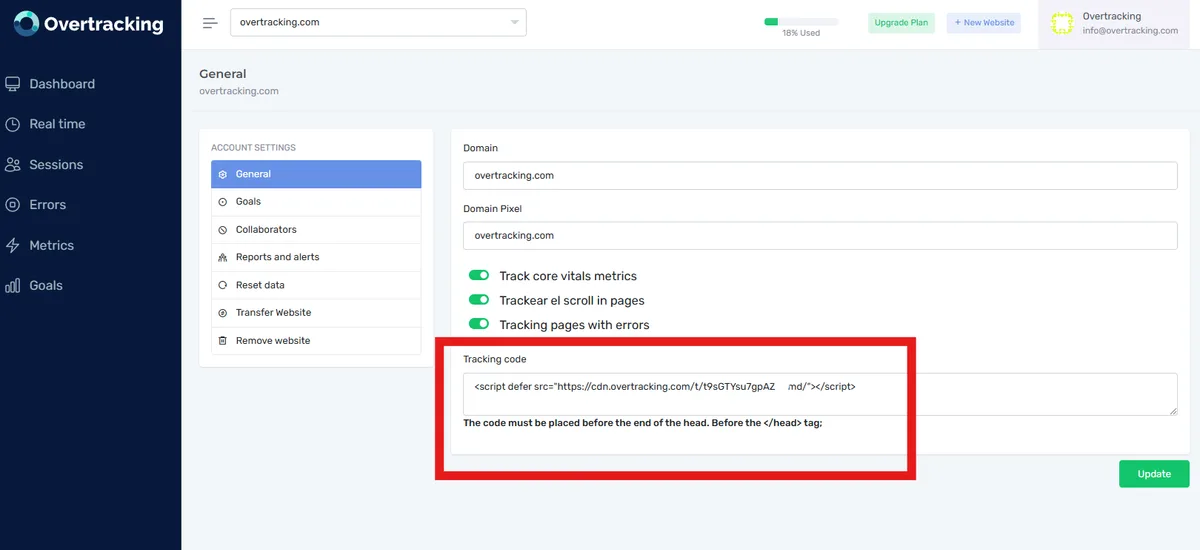
The module will ask for your tracking code, which also installs Overtracking on your store. You’ll find it in the app: choose your website and go to Settings → General.
-
Create a custom goal
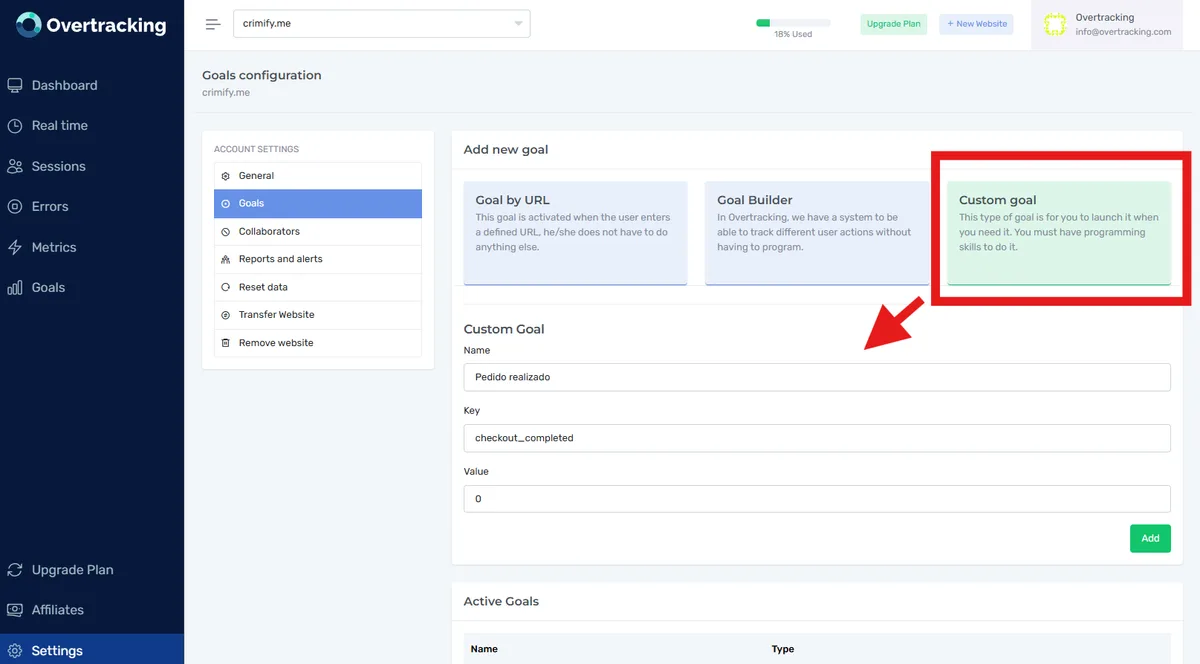
In the app, go to Settings → Goals and create a custom goal:
- Name: whatever you want
- Key: the one you’ll paste in the module (e.g. checkout_completed)
- Value: 0 (the module takes it from each order)
-
Add the event in the module
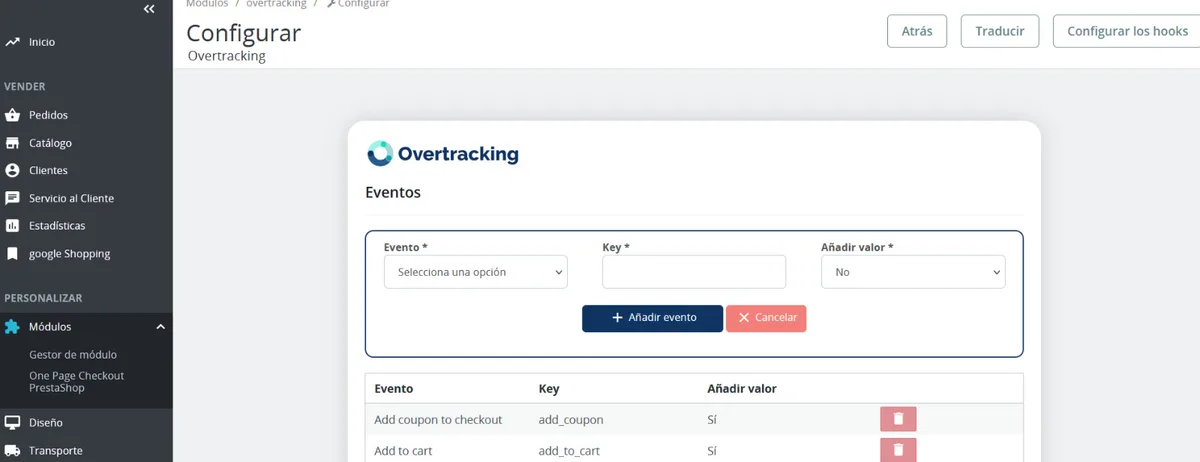
In the module, add an event and paste the key of the goal. For example, to measure completed orders:
- Event: “Order completed”
- Key: checkout_completed
- Add value: “Yes”, to take the value of the order
What you’ll see in Overtracking
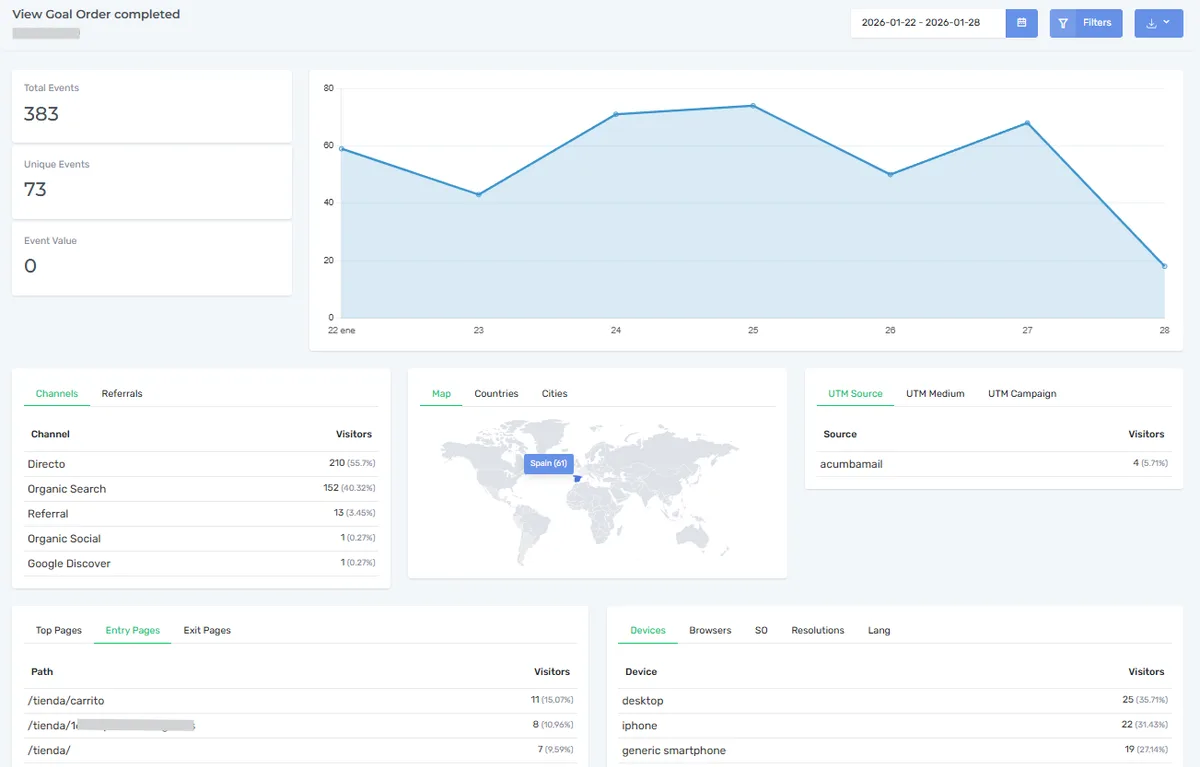
Every order appears in Overtracking with the pages where it happened, the source it came from, the country, device, browser, language and UTM campaign.
Available events
| Event | Key |
|---|---|
| Order completed | checkout_completado |
| Checkout start | checkout |
| Add coupon | addcoupon |
| Payment method | paymentmethod |
| Coupon used (order completed) | couponused |
| Add to cart | addcart |
| View product | viewproduct |
| View product category | viewcategory |
| Search | search |
Start measuring in 5 minutes
Try it free for 7 days. No cookies, no banners, no credit card.
Start your free trial