
 Español
 Deutsch
 Français
 Italiano
 Português
 中文
 日本語
 한국어

Add a filter
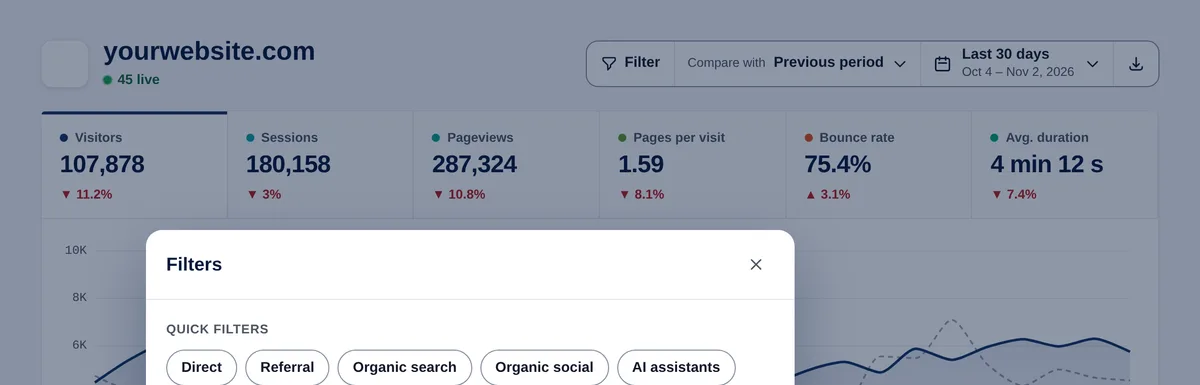
- Click “Filter”.
- Use a quick filter (Direct, Referrals, Organic search, Social networks, AI assistants) or “Add condition”.
- Choose the dimension: pages, acquisition, location, technology or UTM.
- Choose the operator: is, is not, contains or does not contain.
- Type the value or tick suggestions (the most frequent values of the period, with their visitors) and click “Add”.
- Click “Apply filters”. Nothing changes until you apply.
Tip: Faster: in any report, hover over a row and click the funnel (“Filter by this”).
How conditions combine
- Several values of the same dimension and operator add up with “or”: country is Spain or Mexico.
- Different dimensions combine with “and”: country is Spain and device is mobile.
- Up to 10 filters and 20 values.
Active filters appear under the header; remove one with its ×. They’re remembered per website and also apply to sessions, goals, errors, Web Vitals (where the data exists) and exports.
Examples
- Your blog only: page contains /blog/.
- How mobile users from Spain behave: country is Spain + device is mobile.
- A campaign: UTM campaign is black-friday.
- Everything except your home page: page is not /.
Save filters
With “Save filter” you give the current conditions a name (for example “Spain mobile”) and load them later with one click from “My saved filters”. Up to 50 per website.