
 Español
 Deutsch
 Français
 Italiano
 Português
 中文
 日本語
 한국어

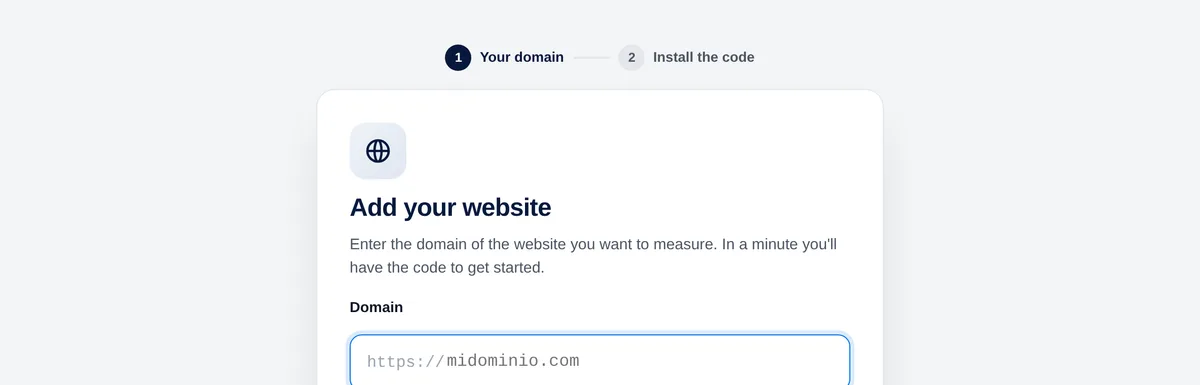
Add your website
- In the app, click “New website”.
- Enter the domain without https://, www or paths, for example mydomain.com. The form shows how it will be saved.
- Click “Continue”: you get the tracking code of that website.
Each website has its own code. You can find it again at any time in Settings → General.
Tip: Paste the same code on your subdomains (for example shop.mydomain.com) and turn on “Subdomains” in Settings → General to see their pages with their name.
Paste the code in every page
Copy your code from the panel (Settings → General → Tracking code, with the “Copy” button) and paste it in the <head> of every page you want to measure, right before </head>. It looks like this:
<script>!function(w,d,s,u){var t=d.createElement(s);t.async=1;t.src=u;var f=d.getElementsByTagName(s)[0];f.parentNode.insertBefore(t,f);}(window,document,'script','https://cdn.overtracking.com/t/tYOUR_CODE/');</script>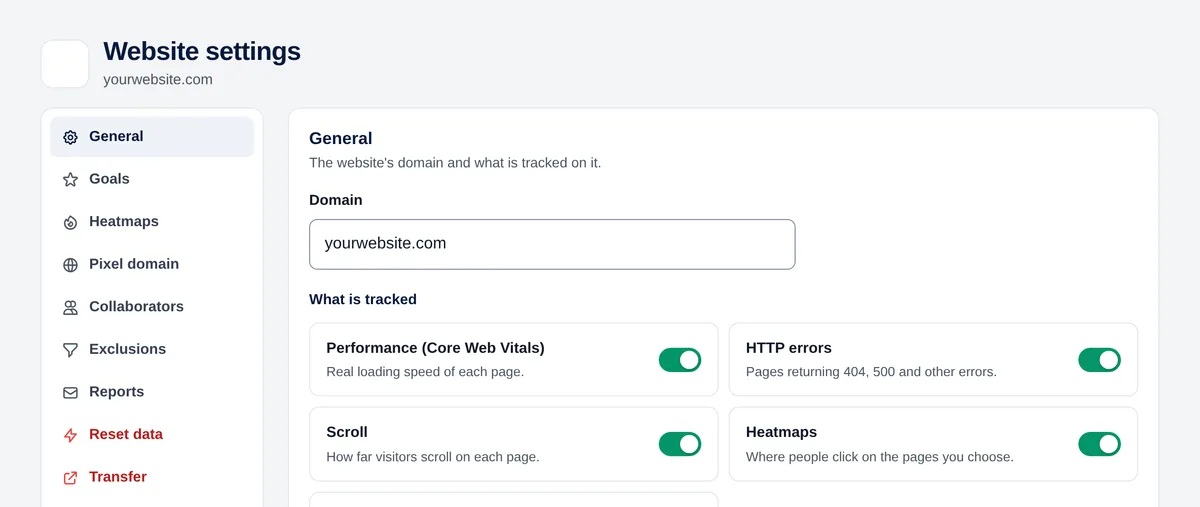
It loads asynchronously, so it doesn’t slow down your page, and it doesn’t set cookies.
How to do it on the most common platforms:
HTML or your own template
- Open the template or layout shared by all your pages (header.php, layout.html, _document…).
- Paste the code right before the </head> tag.
- Save and publish.
WordPress
- Install a plugin to add code to the header, such as “WPCode” or “Insert Headers and Footers”.
- Paste the code in the plugin’s “Header” box.
- Save. If you use a cache plugin (WP Rocket, LiteSpeed…), clear the cache.
Tip: If you have a WooCommerce store, install our plugin instead: it adds the code and also measures orders, carts and coupons. See the WooCommerce guide in Integrations.
Shopify
- Go to Online Store → Themes → … → Edit code.
- Open layout/theme.liquid.
- Paste the code right before </head> and save.
Google Tag Manager
- Tags → New → Tag configuration → “Custom HTML”.
- Paste the code.
- Trigger: “All Pages”.
- Save and publish the container (the tag doesn’t work until you publish).
Check that it works
- Open your website in another tab (better in a private window).
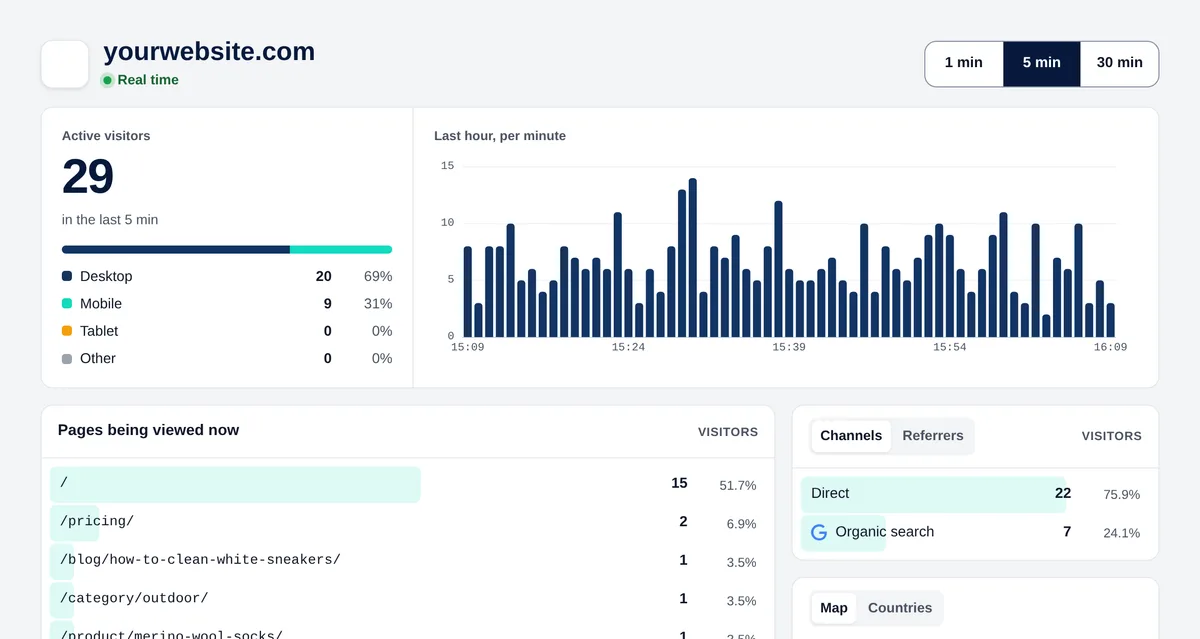
- In Overtracking, go to Real time: your visit appears within a few seconds.
- When adding the website, the second step also turns green with the first visit.
If nothing shows up after a couple of minutes:
- Check in your page source (Ctrl+U) that the script appears, with your code, inside <head>.
- Clear the cache of your website, plugin or CDN and reload.
- Check that your own IP isn’t excluded in Settings → Exclusions.
- Test in a private window without browser extensions.


